Why are SVGs missing in the Template?
Fix missing SVG images in an Elementor template imported from UiChemy.
Reason: When you import a template exported with UiChemy, SVG images might not show up. By default, WordPress and Elementor don't allow SVG file uploads for security reasons, if the SVG file upload option isn't enabled, SVG files won't upload from your template and will be missing from your design.
Solution: Enable the SVG file upload option in Elementor settings.
- From the Dashboard, go to Elementor → Settings → Advanced.
- Select Enable from the Enable Unfiltered File Uploads dropdown, and click Save Changes.
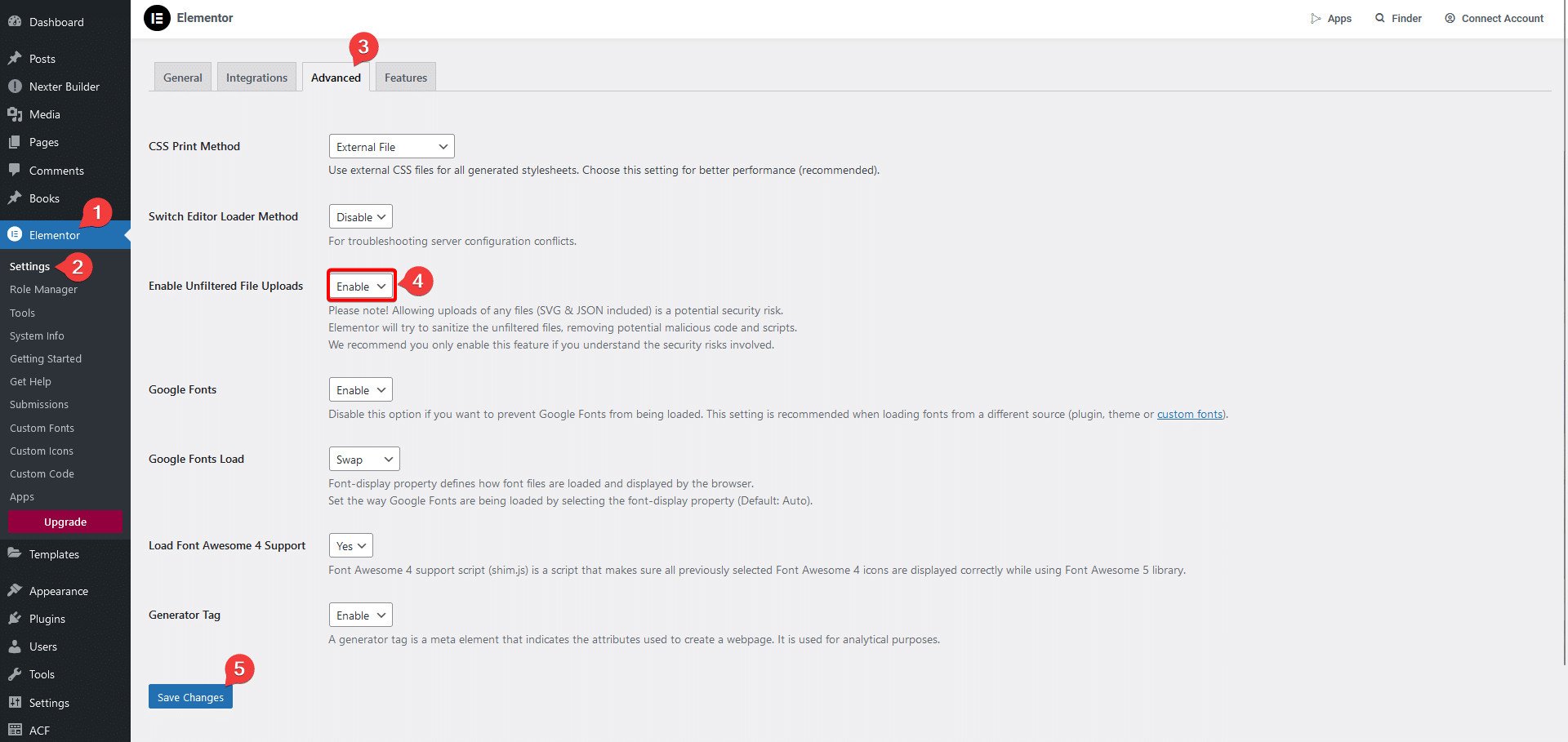
Now, when you upload a template containing SVG images, they'll appear correctly.
Frequently Asked Questions
Why are SVGs missing when I import a template in Elementor?
WordPress restricts SVG uploads by default for security reasons, if the SVG file upload option isn't enabled in Elementor settings, SVGs from your template won't be uploaded, resulting in missing visuals.
What common mistake do people make when working with SVGs in Elementor?
Forgetting to enable the SVG file upload option, always check this setting before importing templates that include SVGs.
Are there any limitations when using SVGs in Elementor?
SVG uploads aren't allowed by default in Elementor due to security concerns, you need to enable unfiltered file uploads to use them.
What should I do if my SVGs still don't show up after enabling uploads?
Check that the SVG files are correctly included in your Figma design and that the import completed without errors. Re-exporting the design from UiChemy can sometimes resolve the issue.