Which Properties of Figma Are Not Connected for Elementor?
A reference list of Figma properties and options that UiChemy doesn't export to Elementor.
If you create your Figma layout following the design guidelines, you can easily convert it into an Elementor template with UiChemy. Most Figma options are supported, but some aren't exported. Here's the full list of options to avoid, since most aren't supported by Elementor.
Tools
Region Tools, Section, Slice
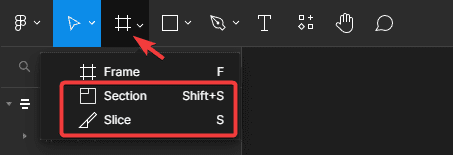
Frame
- Fill tab, Video
- Effects tab, Layer Blur, Background Blur
- Mask
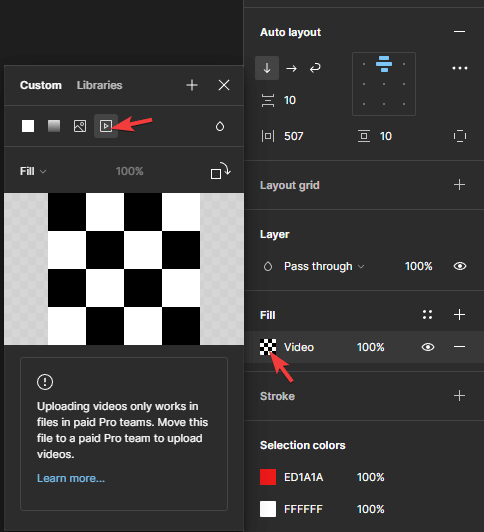
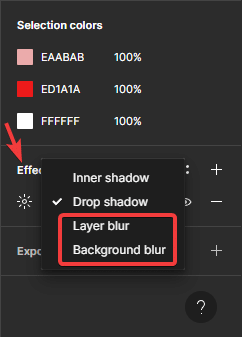

Mask isn't supported for any elements, but you can use Figma's lock option to export a masked element as an image with UiChemy.
Absolute Objects (except Frame)
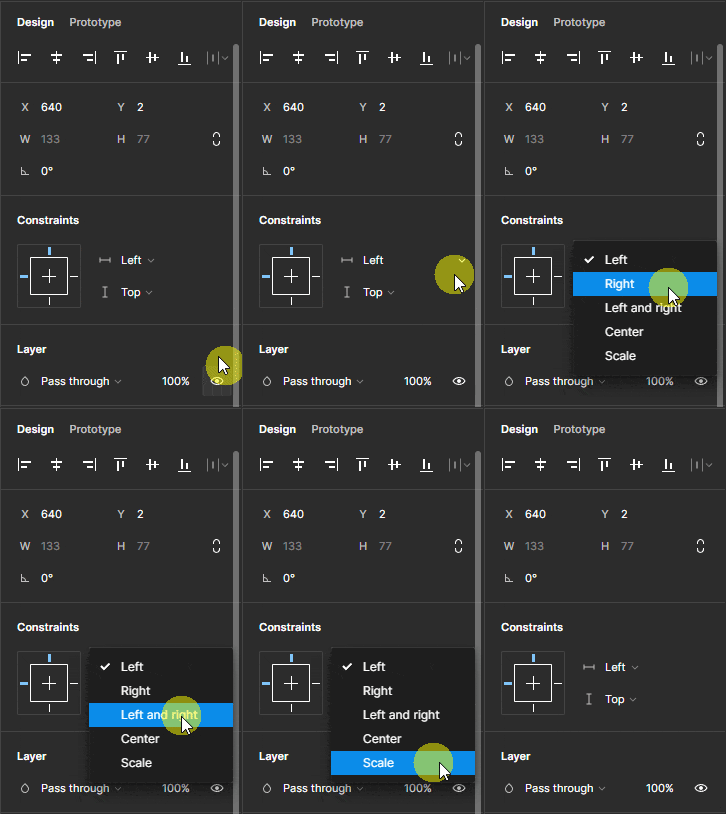
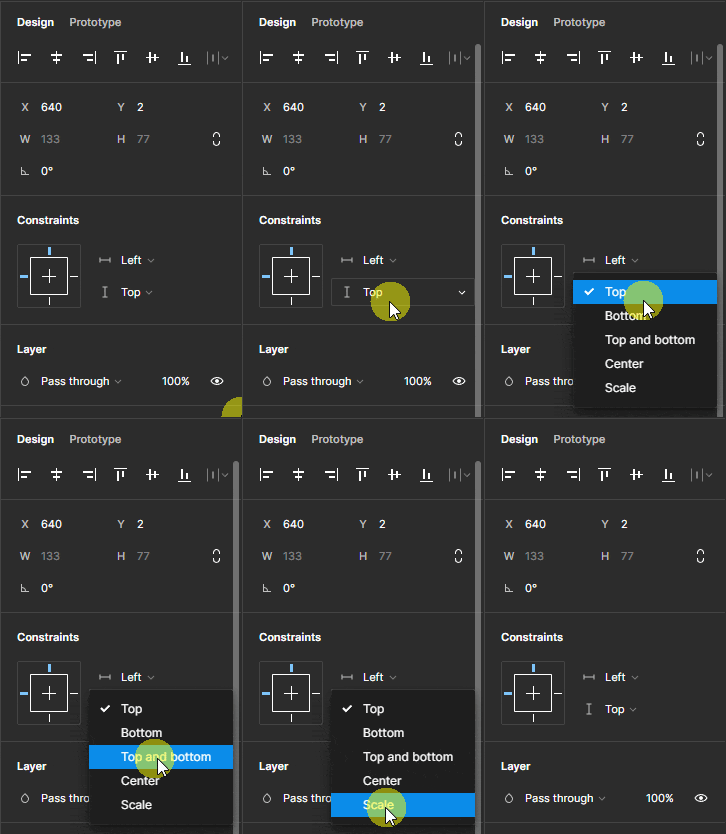
When Auto Layout isn't enabled for a frame, you'll find a Constraints option for any element placed inside it:
- Horizontal, Left & Right, Scale
- Vertical, Left & Right, Scale
Text
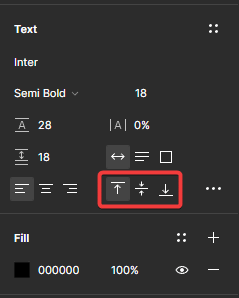
Text tab, Align Top, Align Middle, Align Bottom
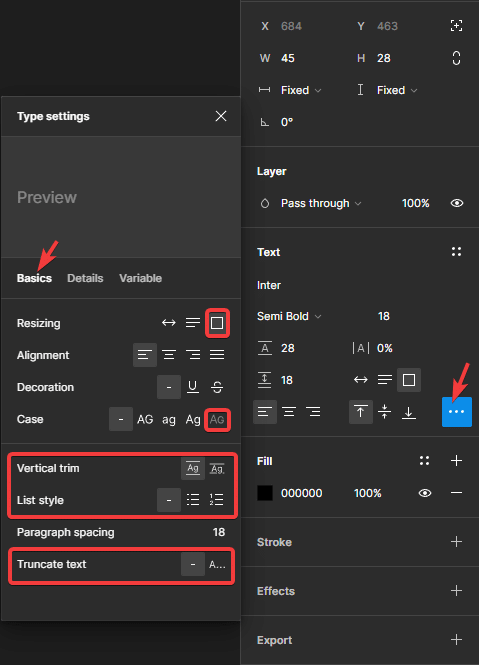
Under Type Settings, Basics: Resizing → Fixed size; Case → small caps; Vertical trim (all); List style (all); Truncate text (all)
Under Type Settings, Details: Indentation (all); Case → small caps; Letter case → Case-sensitive forms; Letter case → Capital spacing

Fill tab, Gradient, Image, Video, Blend mode
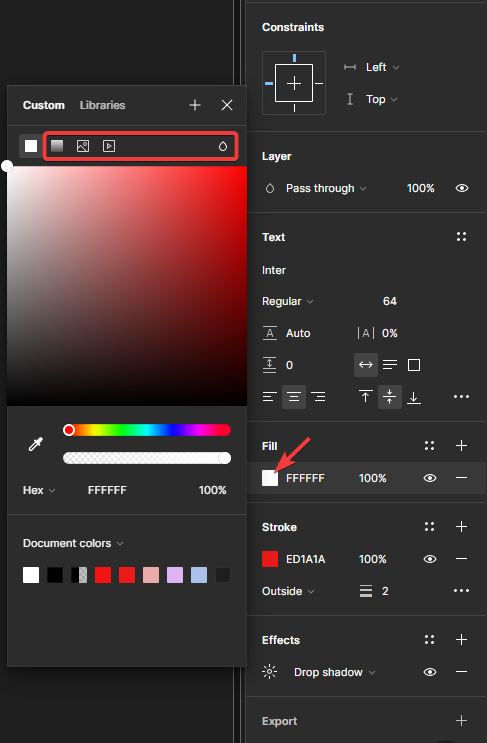
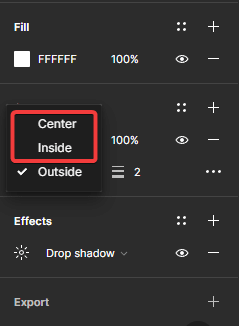
Stroke tab, Center, Inside
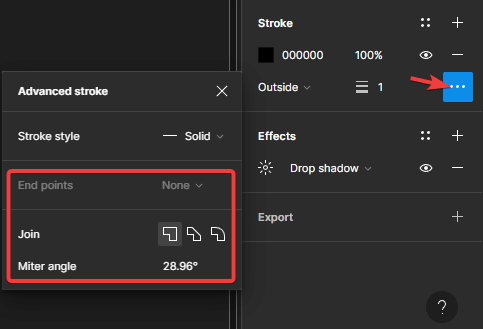
Under Advanced stroke settings, End points, Join, Miter angle
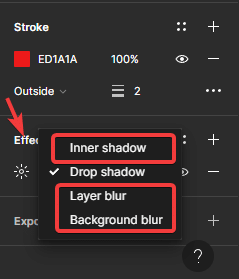
Effects tab, Inner shadow, Layer Blur, Background Blur
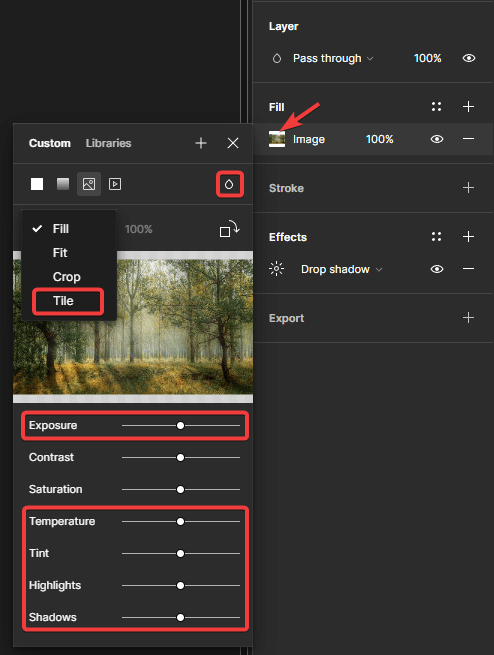
Image
- Fill tab, using an image as an element fill, the Tile type isn't supported (but works when used as a background). Blend mode isn't supported. Filter types Exposure, Temperature, Tint, Highlights, and Shadows aren't supported.
- Stroke tab, Center, Inside
- Under Advanced stroke settings, End points, Join, Miter angle
- Effects tab, Inner shadow, Layer Blur, Background Blur
The Stroke and Effects tab limitations for images are the same as for text elements.
Icon
You can use icons in two ways with UiChemy: SVG icons, or Font Awesome 5 Free font.
For Font Awesome 5 Free, the following aren't supported:
- Text tab, Line-height, Letter spacing, Paragraph spacing, Width (except Auto Width), Align Top, Align Middle, Align Bottom, and all Type Settings options
- All options in the Stroke and Effects tabs
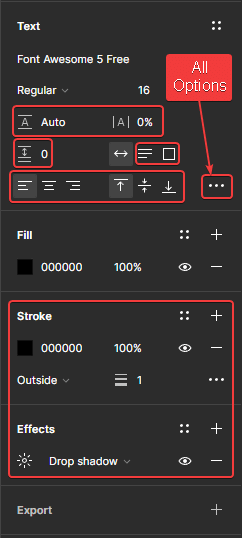
For Font Awesome 5 Free icons, using Auto Width is recommended.
Group
- Stroke tab, Center, Inside
- Under Advanced stroke settings, End points, Join, Miter angle
- All options in the Effects tab
The Stroke and Effects tab limitations for groups are the same as for text elements.
Frequently Asked Questions
What properties of Figma should I avoid when designing for Elementor?
Avoid Layer Blur and Background Blur in the Effects tab, since they aren't supported. Masked elements also won't export correctly unless you use the lock option to export them as images.
Can I use video fills in my Figma designs for Elementor?
No, the Fill tab's Video option isn't supported when exporting to Elementor. Use solid colors or images instead.
What are the best practices for using text elements in Figma for Elementor?
Avoid Align Top, Align Middle, and Align Bottom, stick to basic, supported text settings to keep your layout and readability intact after conversion.
Why are some Figma properties not exporting to Elementor?
Some properties, like gradient fills and certain stroke settings, simply aren't compatible between the two platforms. Knowing these limitations upfront helps you design more effectively and avoid frustration during conversion.
How do I ensure my Figma icons work in Elementor?
Use SVG icons or Font Awesome 5 Free font. With Font Awesome, avoid unsupported settings like Line-height and Letter spacing, and use Auto Width for best results.