How to Install UiChemy Figma Plugin on Your Figma App?
Install the UiChemy plugin in Figma and activate it with your license key.
To use UiChemy and convert your Figma layout into an Elementor or WordPress template, you need to integrate the UiChemy Figma plugin into your Figma app. Here's the step-by-step process.
Install UiChemy
In Figma, go to Resources → Plugins, search for UiChemy, and click Run. This installs the plugin and opens the UiChemy interface.
Without purchasing the UiChemy Pro plan, you won't be able to access its features.
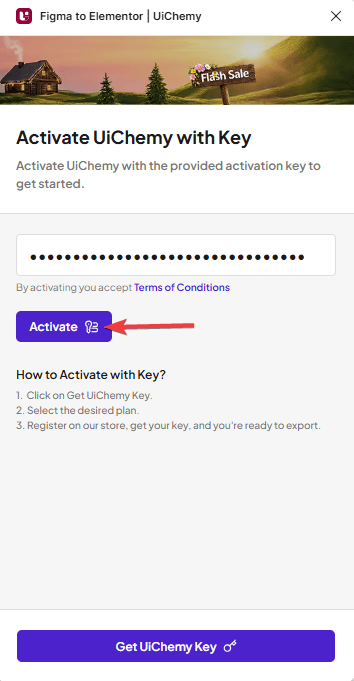
Enter your UiChemy license key and click Activate. To get a license key, click Get UiChemy Key, this takes you to the UiChemy pricing page. Scroll to the plans section, select your desired page builder, and click Buy Now.
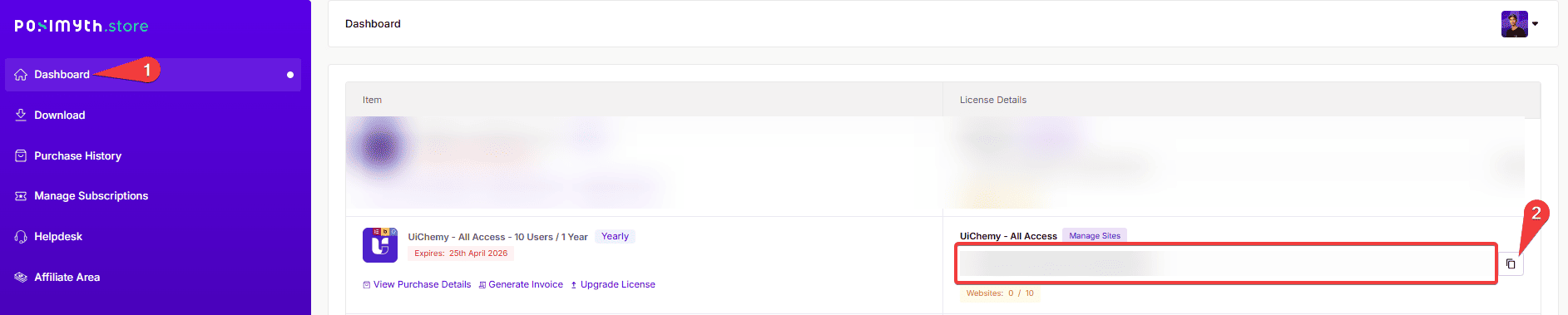
Once your account is created, you'll find your license key, or you can get it from your Posimyth Store account dashboard. Copy the key, go back to Figma, paste it into the Key field in the UiChemy interface, and click Activate.
Now you can use UiChemy.
Frequently Asked Questions
What should I do if the UiChemy plugin doesn't install in Figma?
Make sure you're searching for it correctly under Resources → Plugins. A restart of the Figma app can resolve installation issues, and it's worth checking for Figma app updates in case an outdated version is causing compatibility problems.
Can I use the UiChemy Figma Plugin with any page builder?
It supports Elementor, Gutenberg, and Bricks Builder, not Divi, WPBakery, or other page builders.
What are the best practices for entering my UiChemy license key?
Make sure there are no extra spaces before or after the key. Copy it directly from your Posimyth Store account dashboard to minimize the risk of typos.
How do I find my UiChemy license key after creating an account?
You'll find it in the Dashboard of your Posimyth Store account.