Things to Avoid in Figma Design for Optimum Conversion
Common Figma design mistakes to avoid for a smooth, accurate conversion with UiChemy.
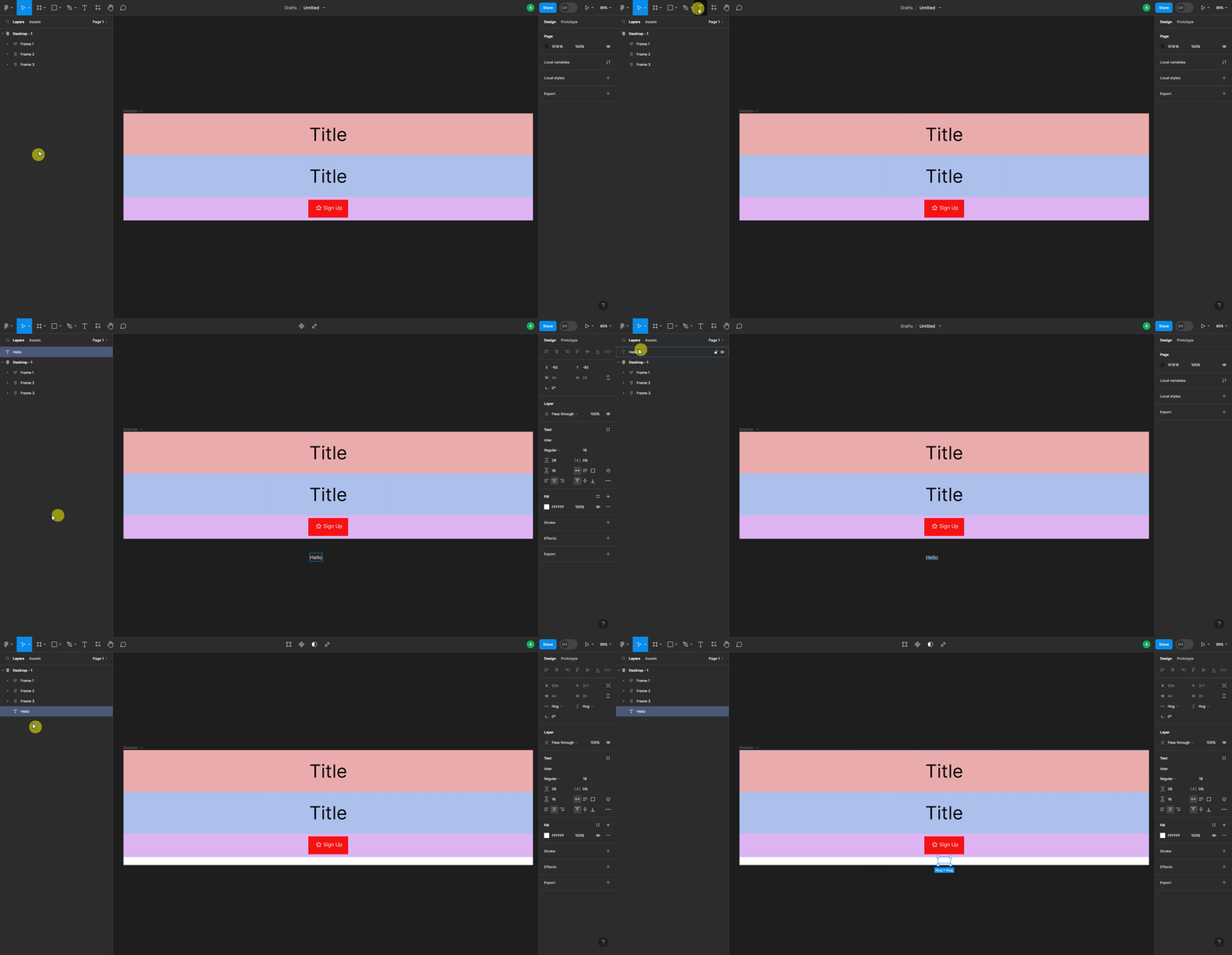
Don't Add Elements Outside the Top-Level Frame or Any Container
Don't add any elements, text, image, etc., outside the top-level frame or any container. Follow the design guideline for your layout, otherwise those elements will be ignored in the exported template.
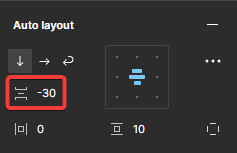
Don't Add Negative Gapping in Auto Layout
While using the Auto Layout property in a container, don't use a negative value for the Vertical gap between items field. CSS Flexbox doesn't support negative gapping, so the negative value will be treated as 0 on export, even though it appears to work correctly in Figma.
Avoid Using Absolute Objects
Avoid absolute positioning in Figma, use Auto Layout instead. When you use Auto Layout, it's automatically converted into an Elementor container on export.
Avoid Adding Unnecessary Frames
Try to avoid adding unnecessary frames in your Figma design. The more frames you add, the more containers it creates in Elementor, making the result harder to edit. Add frames only where necessary.
Avoid Using Unoptimized Images
Images are imported directly from Figma into Elementor, so unoptimized or heavy images will take longer to import and slow down your page. Always use web-optimized images to reduce import time and page load time.