How to Split a Large Figma Layout for an Optimal Conversion in UiChemy?
Split a Figma design that exceeds UiChemy's 12,000px height limit into smaller sections for a clean export.
If your Figma design exceeds 12,000 pixels in height, UiChemy won't be able to export it as a single file.
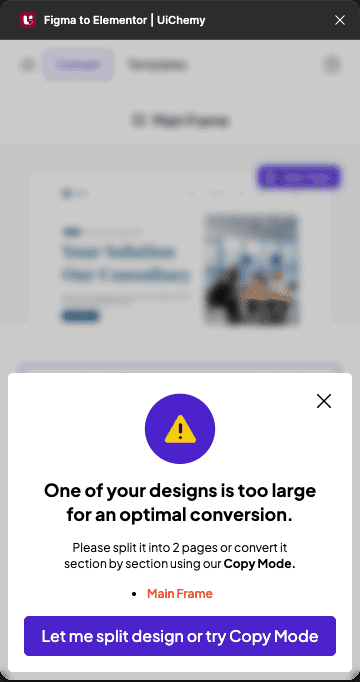
To ensure a smooth and accurate conversion, split your design into smaller sections. This makes it compatible with UiChemy and helps maintain the quality and performance of your exported files.
Steps to Split and Export
- Click on the section/layout you want to split from the design.
- Press the Alt key, and when you see the double arrow (black and white) cursor, drag the section out to duplicate it.
- Open the UiChemy plugin.
- Choose Step by Step Method and click Start.
- On Step 2: Lock Media, lock the necessary layers, click Fix individually, or Fix All to lock everything at once.
- At Step 4: Manage Auto Layout, choose Convert to Auto Layout.
Choosing It's already in Auto Layout skips this conversion entirely, only pick that option if your design is already using Auto Layout.
- Click Duplicate & Optimize Design. This duplicates your design and converts it into Auto Layout, without affecting your original design.
The conversion result depends on your design's structure and standard grouping.
- At the Widget Tagging Mode step, choose Manual Widget Tagging to tag the design elements of the duplicated design.
More details on switching to Auto Layout conversion later in the flow, if you skip it at the Manage Auto Layout step, will be added once this is fully documented.
The plugin automatically recommends an export method based on how you selected the design, you may see Copy to Clipboard, Direct Import, or both options.
Repeat this process for the rest of your design, splitting and exporting each section to Elementor.
Frequently Asked Questions
What should I do if my Figma design exceeds 12,000 pixels?
Split your design into smaller sections, UiChemy can't export a design taller than 12,000px as a single file. This also helps maintain the quality and performance of your exported files.
What's the best practice for optimizing my Figma layout?
Choose Convert to Auto Layout at the Manage Auto Layout step if your design isn't already using Figma's Auto Layout. Choosing It's already in Auto Layout skips the conversion, so only pick that if your design already uses it.
What happens if I forget to lock layers before optimizing?
It may lead to unintended changes in your layout during conversion, always lock the necessary layers from the Lock Multi Layer Media section first.
How do I duplicate a section in Figma for UiChemy?
Click the section you want to split, press Alt, and drag it out until you see the double-arrow cursor, this creates a duplicate you can optimize for conversion.
What should I do if my design isn't optimized after conversion?
More details on this will be added once this step is fully documented. In the meantime, revisit the Manage Auto Layout step and choose Convert to Auto Layout before proceeding.